
Set your Facebook queue's posting times
Set your Facebook Page's posting times once and let new posts fill the next open slot, then reorder, skip, pause or reschedule the queue as needed.
Setting a posting schedule and working the queue.
Scheduling in PostDaily runs on a queue. Instead of picking a time for every single post, you set your posting times once per channel — then new posts drop into the next open slot automatically.
Set your posting times
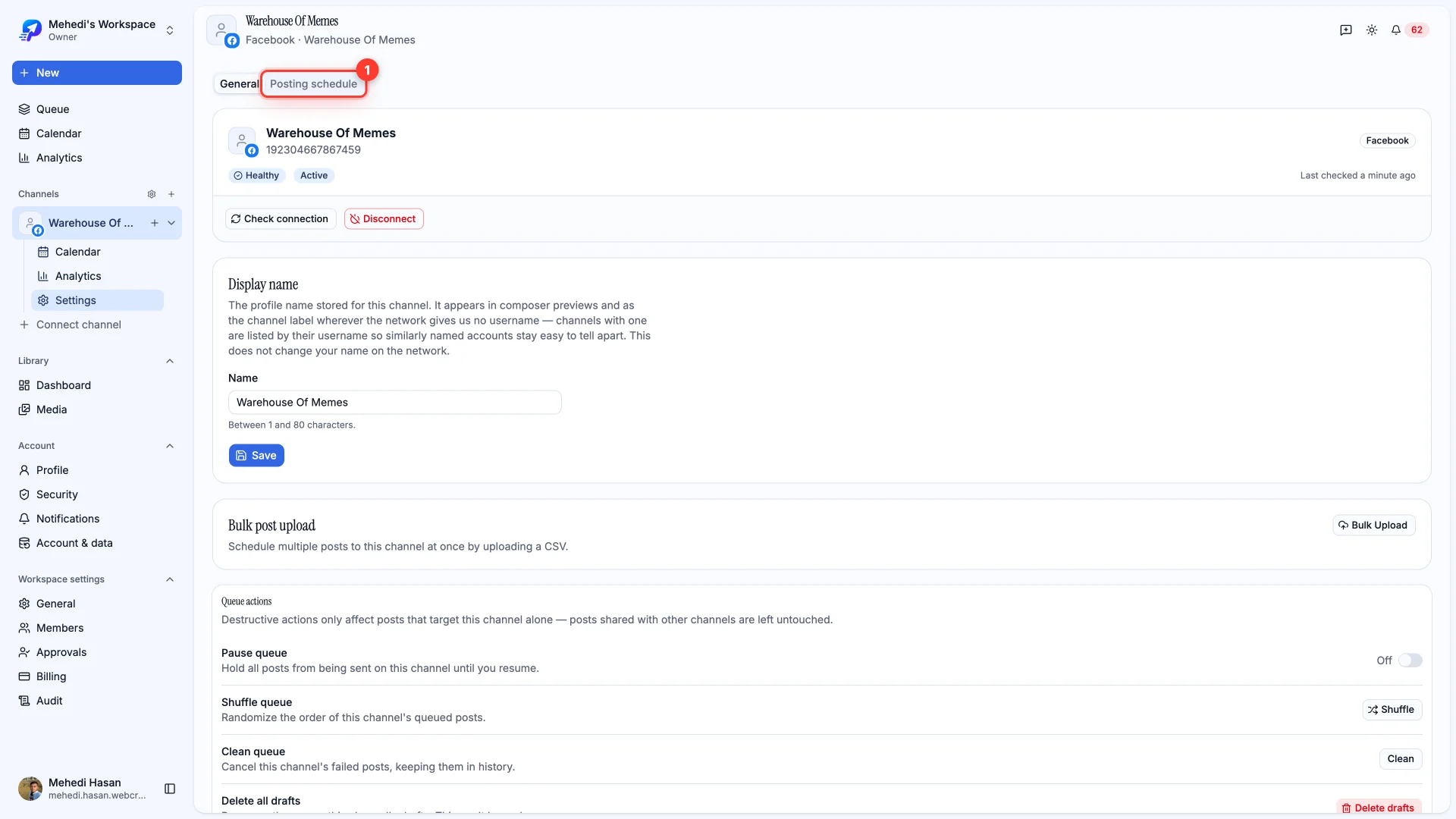
- 1Open your channel and switch to Posting schedule
From Channels, open your Facebook Page, then choose the Posting schedule tab.
This is where your week lives. Set a weekly goal, then fill it however you like — the progress bar tracks how close your current times get you.
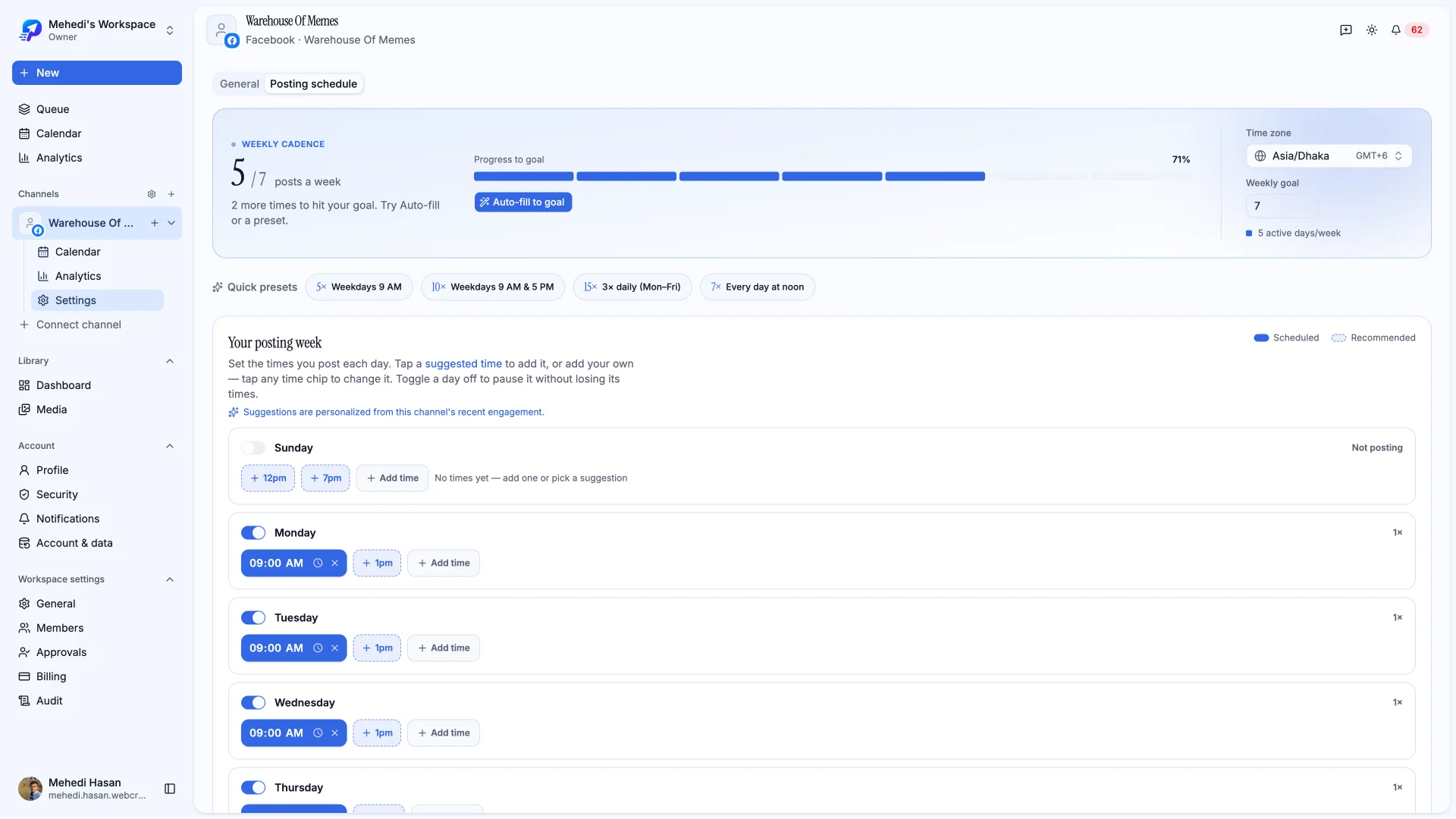
- Quick presets fill a whole week in one click — weekdays at 9 AM, three times daily, and so on.
- Auto-fill to goal adds the times needed to reach your weekly goal.
- Suggested times are personalised from your channel's own recent engagement — tap one to add it.
- Toggle a day off to pause it without deleting its times.
How the queue fills
Once your times are saved, they become slots. The Queue page shows what's lined up and how many open slots are left.
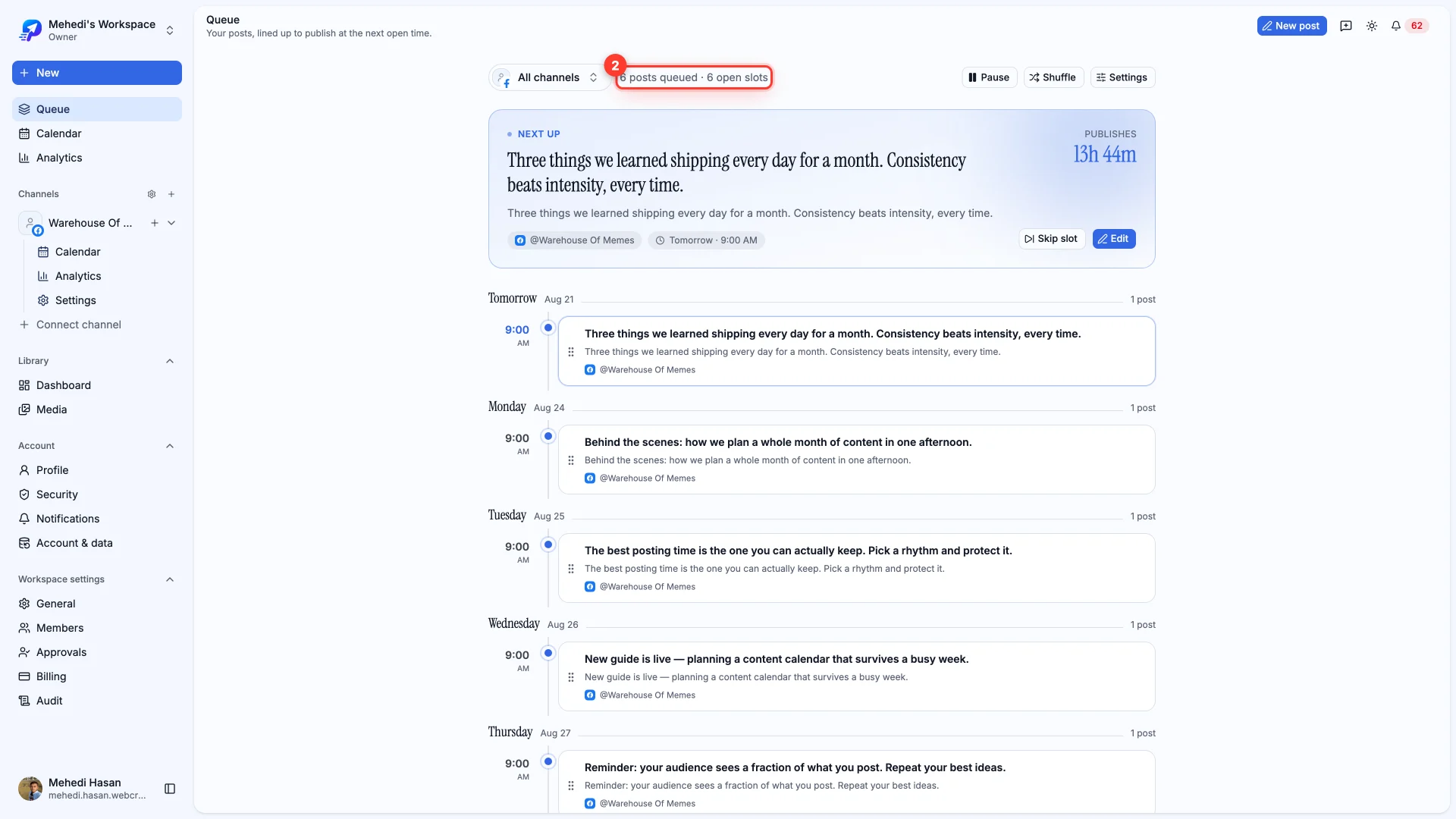
- Drag to reorder — the rest of the queue reflows around what you moved.
- Skip this time slot pushes a post to the next available slot.
- Remove from queue sends it back to Drafts. Your work isn't deleted.
Pause everything
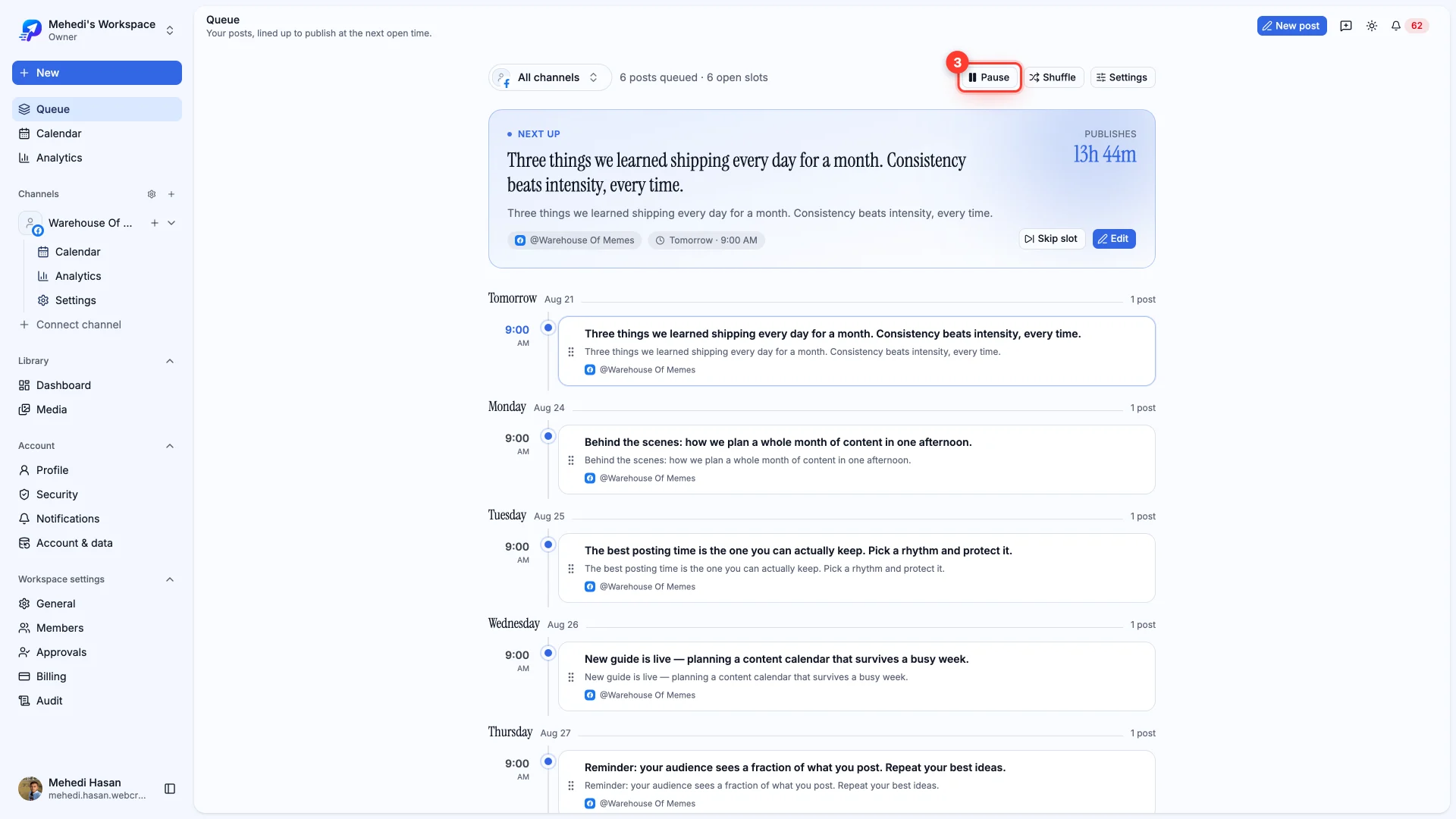
Going away, or something happened in the news you'd rather not post through? Pause holds every post on the channel until you resume — nothing is lost, it just waits.
Prefer a calendar?
The Calendar view shows the same posts by day and time. Drag a post to a different day or slot to reschedule it — no need to reopen the composer.