
Publish your first Facebook post
Write a Facebook Page post, preview it exactly as Facebook will render it, attach photos and a link, then publish it now or schedule it for later.
Writing, formatting and scheduling a first Facebook post.
The composer works the same way for every network. You pick which channels a post goes to, write once, and each channel gets its own preview and its own settings.
Write your post
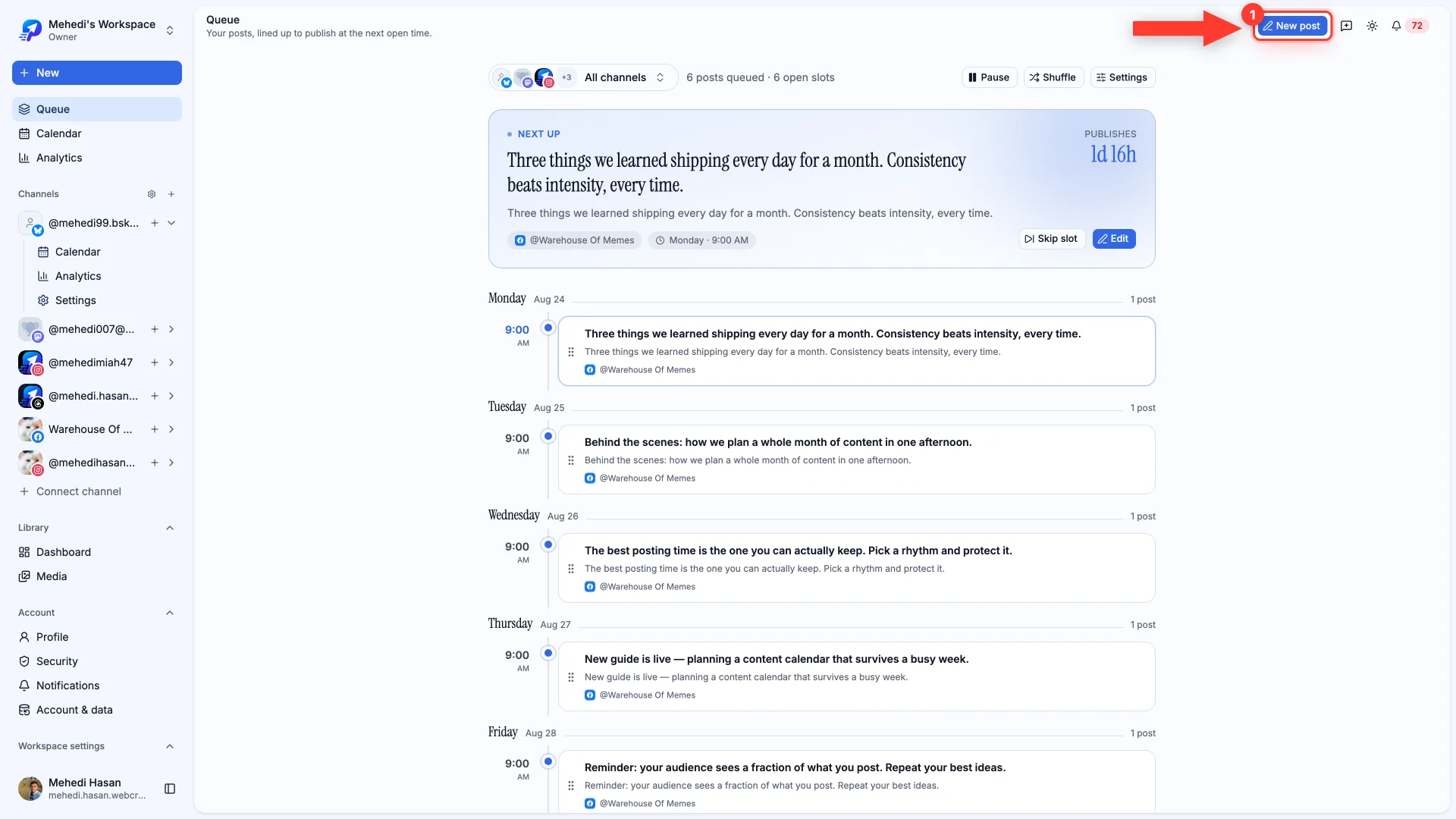
- 1Click New post
It's at the top of the Queue, Calendar and Dashboard — wherever you are.
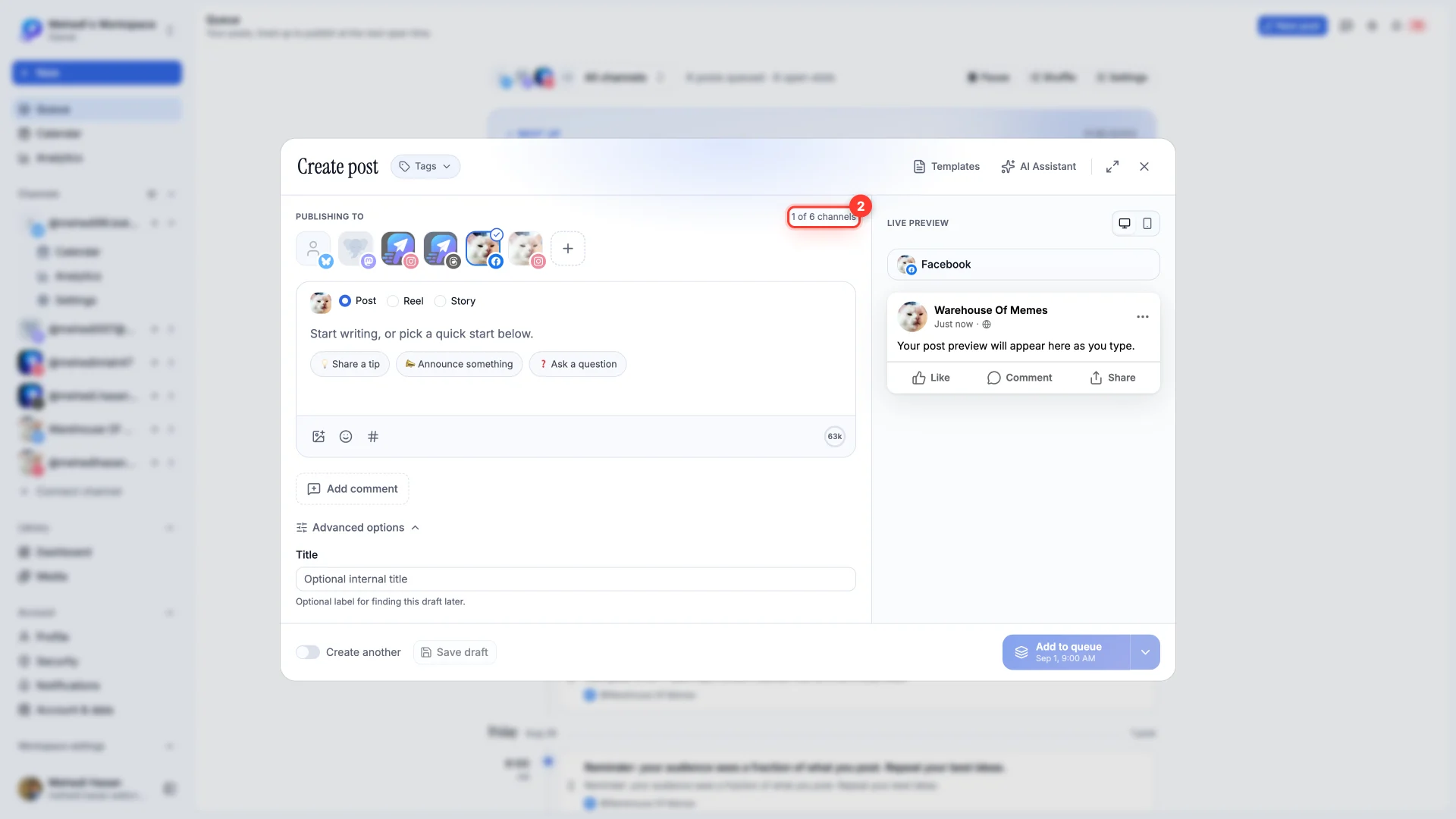
- 2Pick the Page you're publishing to
Click your Facebook Page's avatar. The counter on the right tracks how many channels the post will go to, so it ticks up to 1 of however many you have connected. Nothing else unlocks until at least one is picked, so a post can never go out to the wrong channel by accident.
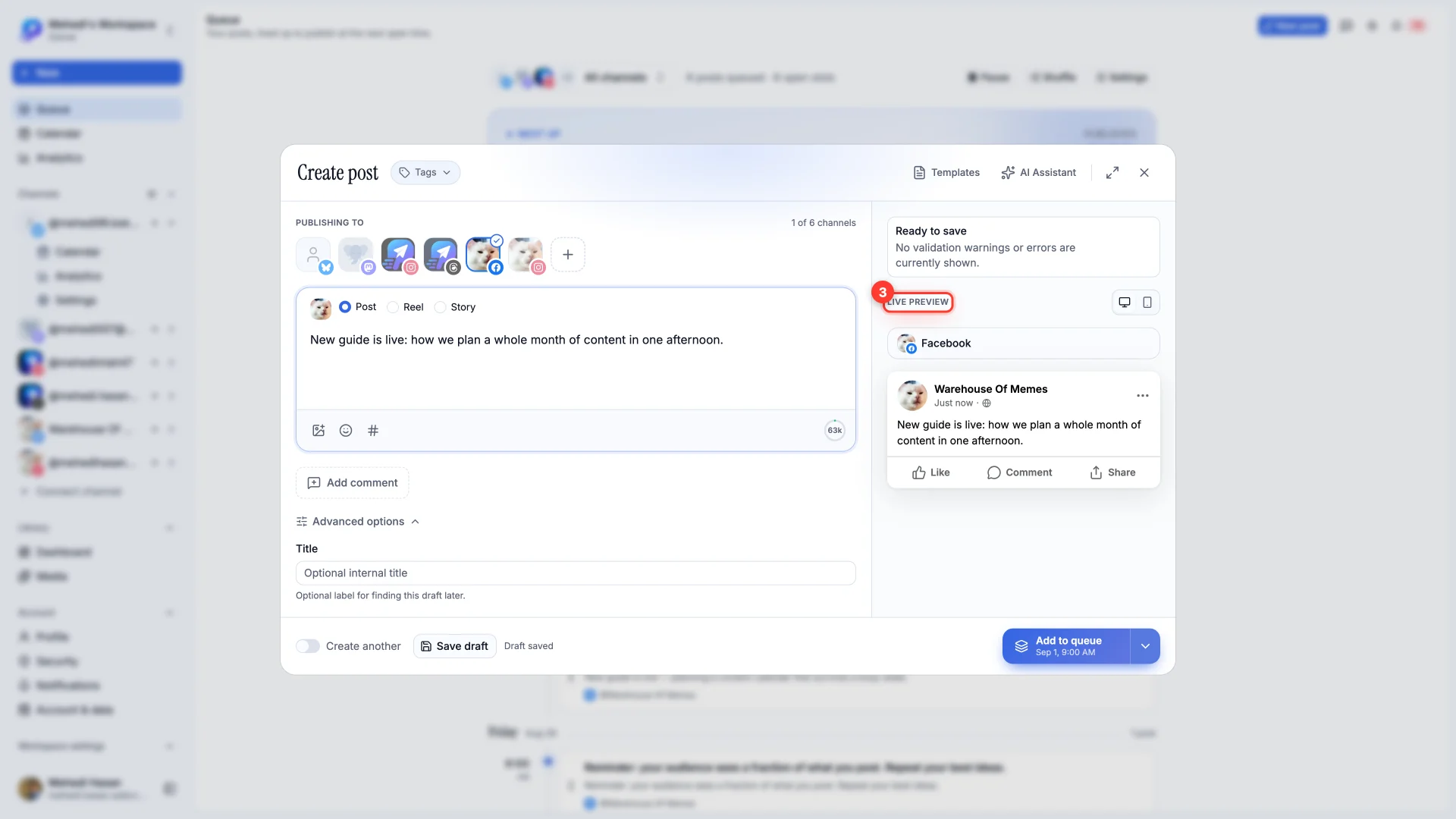
- 3Write your caption
The live preview on the right shows exactly how the post will look on Facebook, updating as you type.
Choose a format
Above the editor you'll find three formats. Each has its own rules, and the preview changes to match.
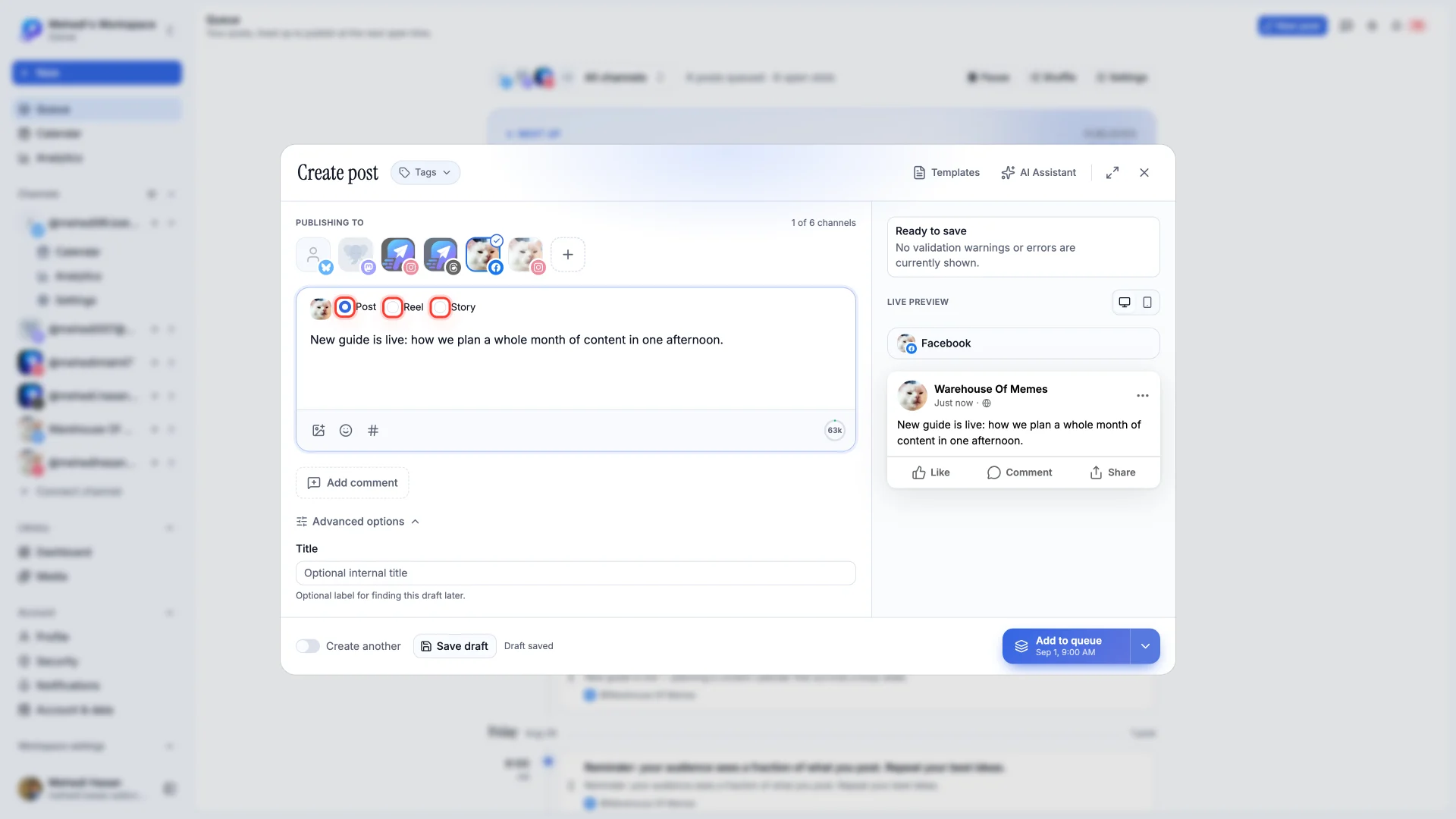
- Post — a normal feed post. Text on its own, or up to 10 photos, or a video.
- Reel — vertical video only. If you have an image attached, this option is disabled and tells you why.
- Story — a single vertical photo or video that disappears after 24 hours.
Add a first comment
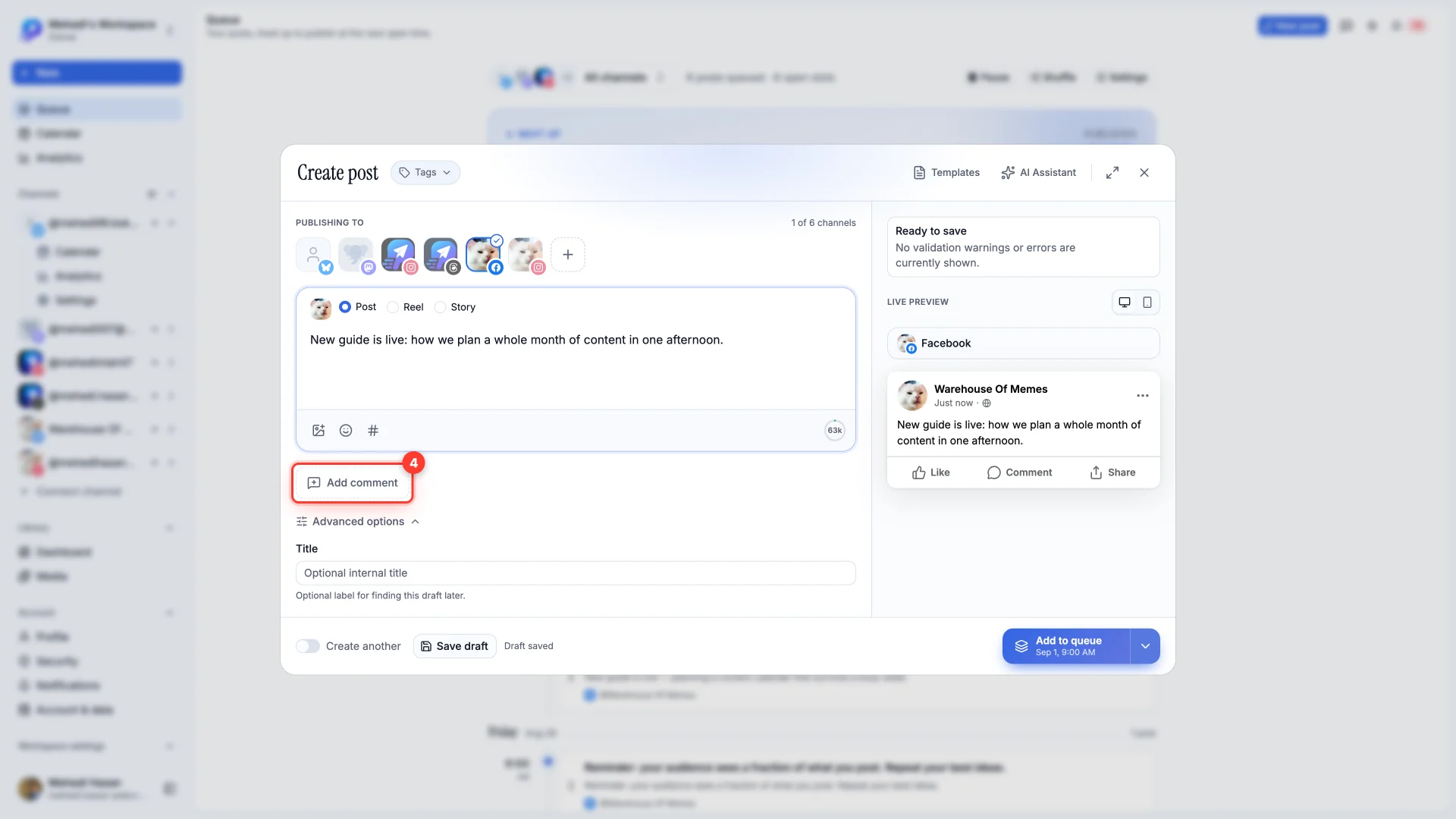
Links in a Facebook post can cost you reach, so many Pages put the link in the first comment instead. Click Add comment and PostDaily posts it the instant your post goes live — from the same Page, with no reminder needed.
Choose how it goes out
The button in the bottom corner shows the default — the next open slot in your posting schedule. Click the arrow beside it to see every option.
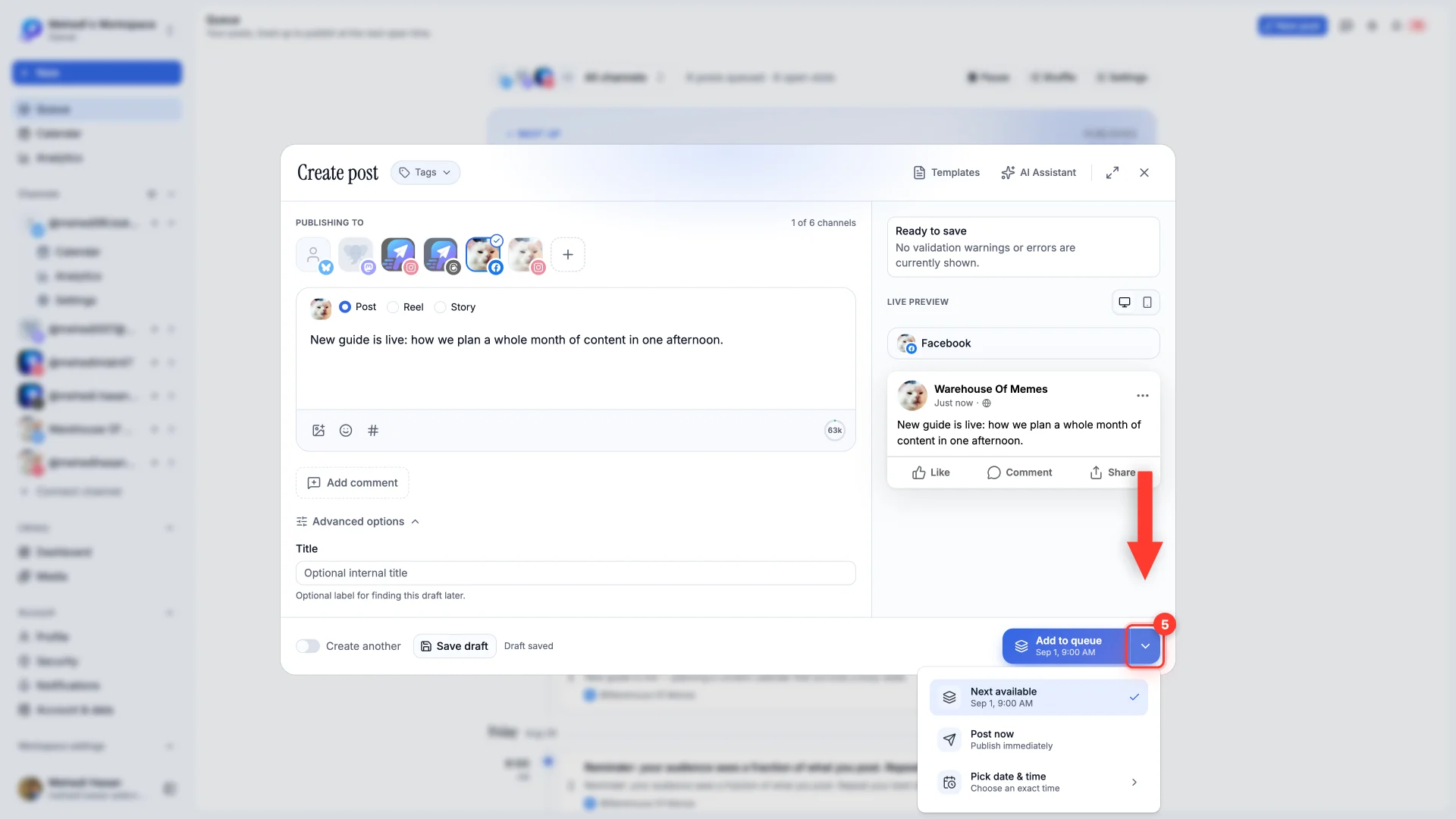
- Next available — drops the post into the next free slot in your queue.
- Post now — publishes immediately and reports the result inline.
- Pick date & time — schedules it for an exact moment you choose.
Not ready yet? Save draft keeps everything exactly as it is, and the draft is waiting for you in your queue.