Bulk schedule social posts from a CSV
Upload a CSV spreadsheet to fill a channel's schedule in one go, with text, image links, tags and posting times, and fix any row the import rejects.
Importing a month of posts from a spreadsheet, one channel at a time.
Planning a month in a spreadsheet is often faster than writing posts one at a time. Bulk upload takes that spreadsheet and turns each row into a scheduled post.
Open bulk upload
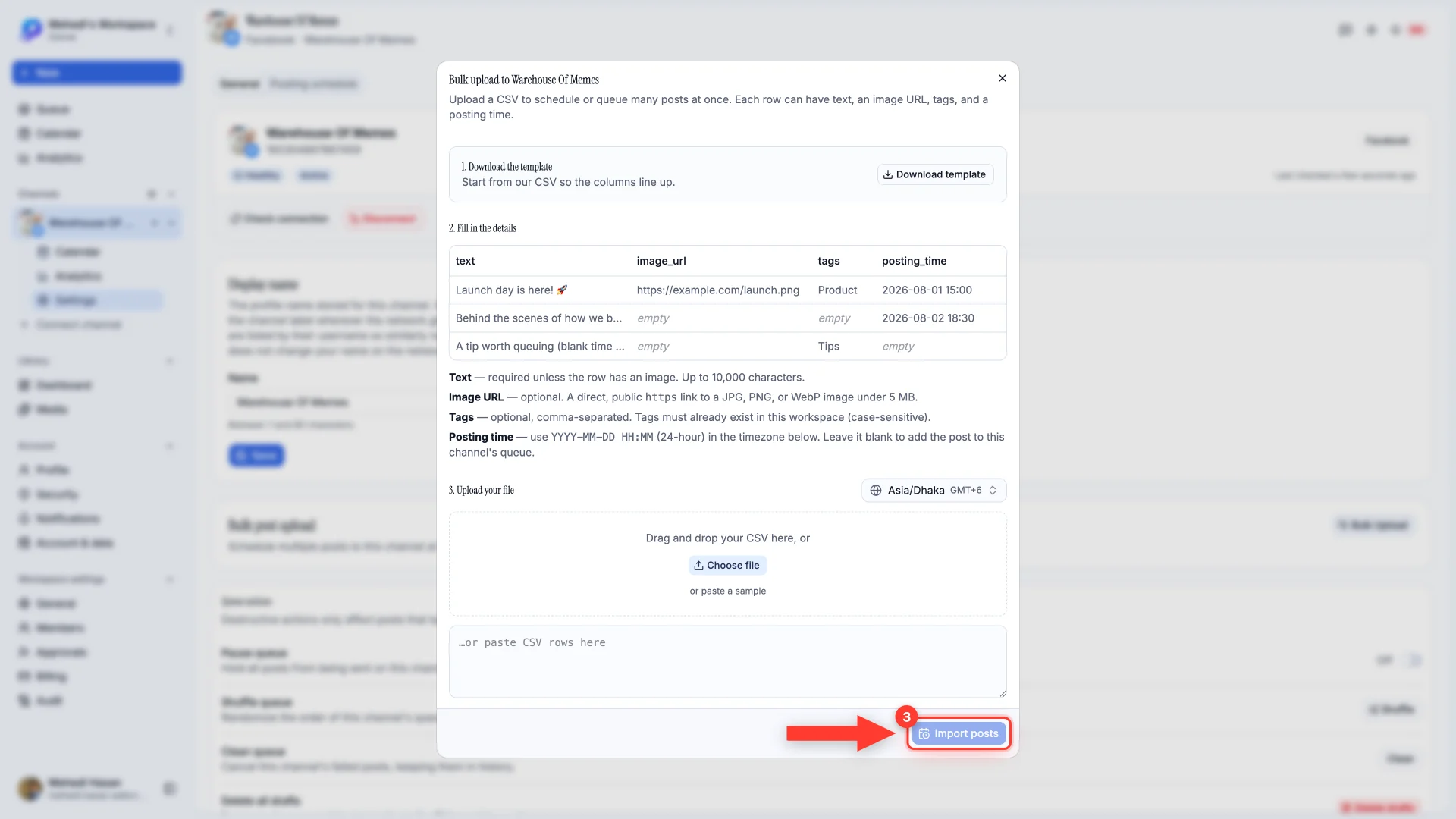
It lives on the channel you're uploading to — open Channels, pick the channel, and find Bulk Upload on its settings page.
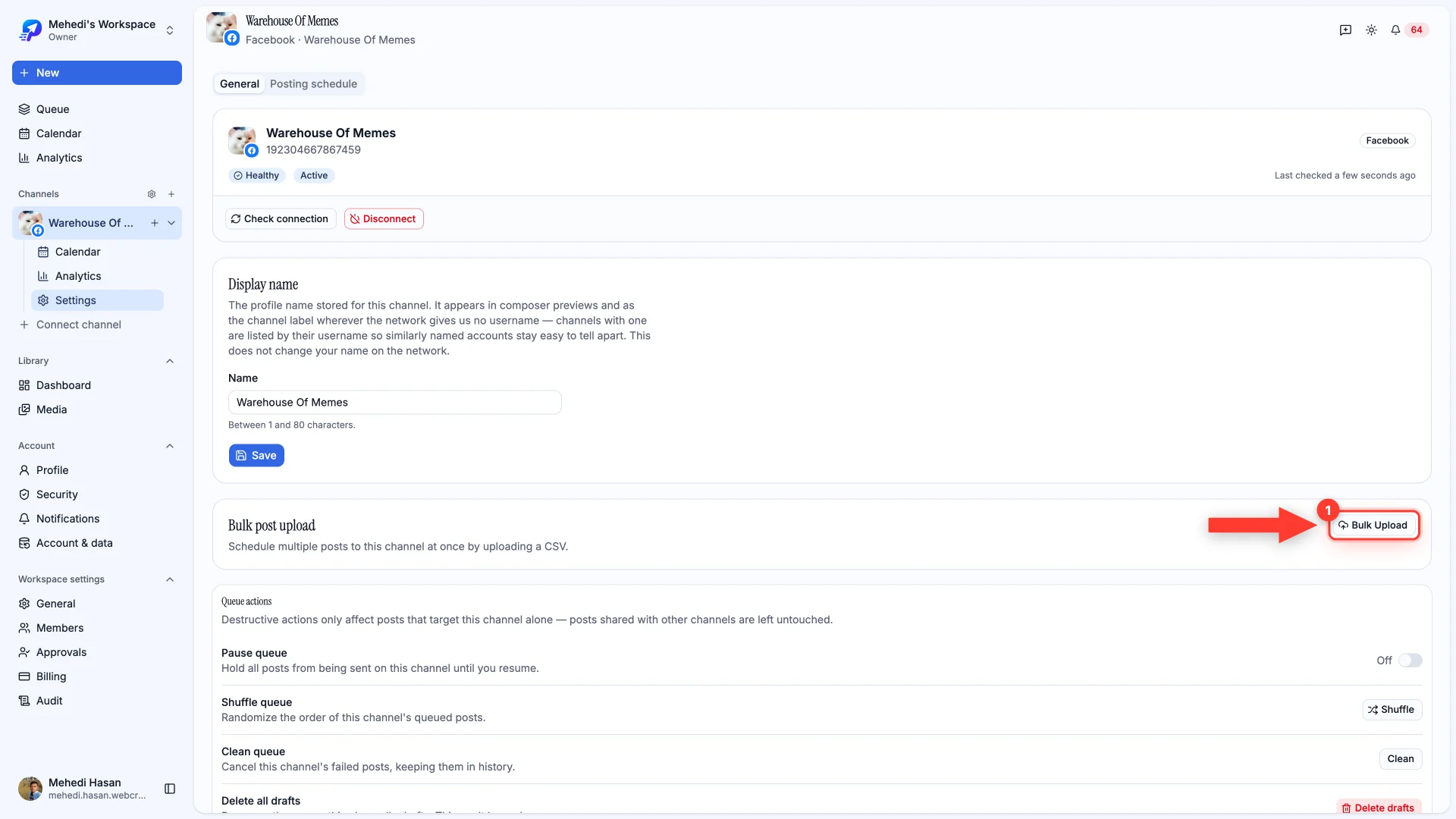
Start from the template
Download the template so the columns line up. Filling in your own spreadsheet from scratch is the most common reason an import fails.
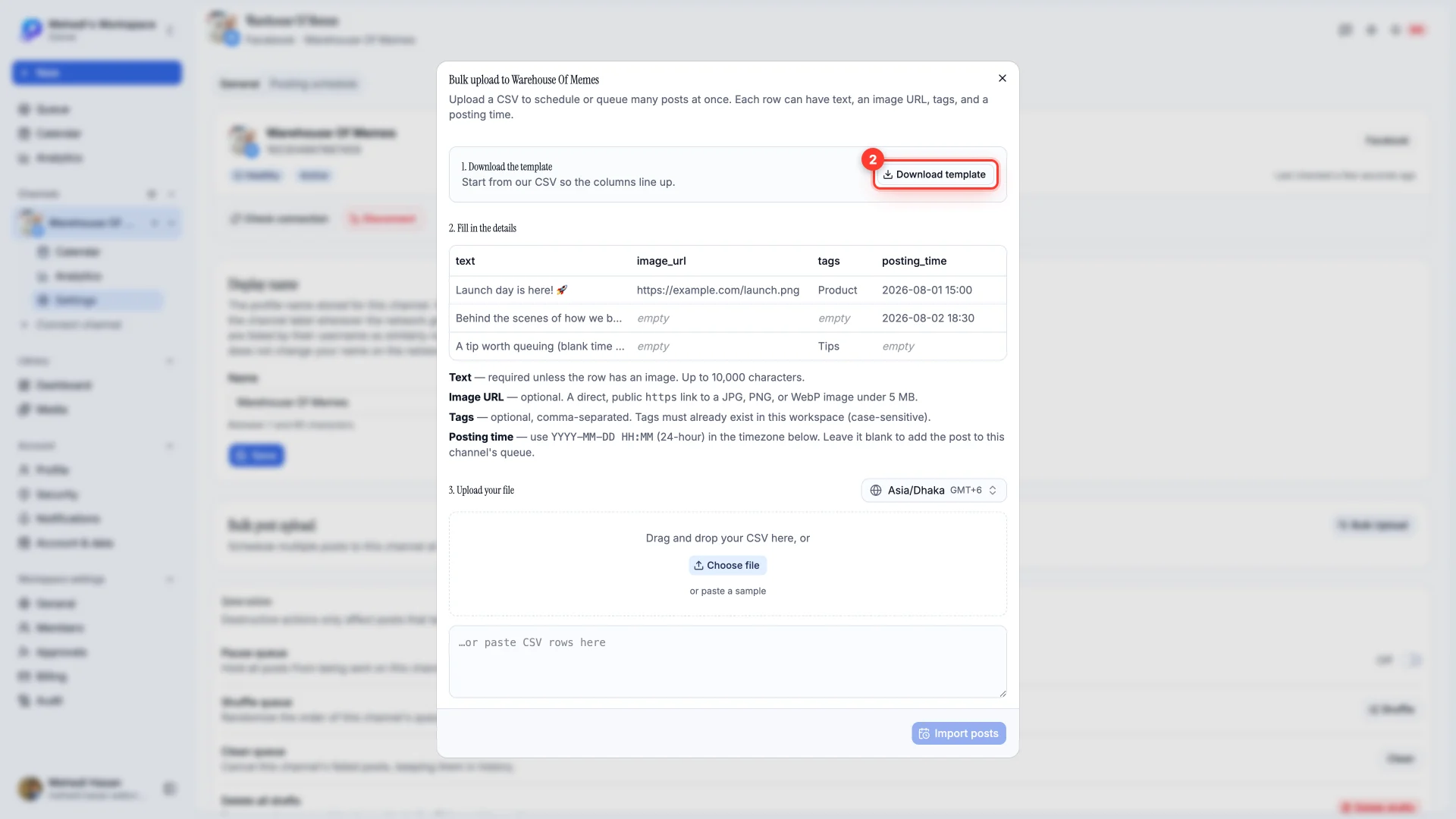
What each column does
- text — required, unless the row has an image. Up to 10,000 characters.
- image_url — optional. A direct, public
httpslink to a JPG, PNG or WebP under 5 MB. - tags — optional, comma-separated. Tags must already exist in this workspace, and they're case-sensitive.
- posting_time —
YYYY-MM-DD HH:MMin 24-hour time. Leave it blank and the post joins the channel's queue instead.
Uploading to a Pinterest channel
A pin needs a board, and a spreadsheet row has nowhere to name one. On a Pinterest channel the dialog asks you to choose a board before importing, and every pin in the file goes to it. To spread pins across boards, split the file and import each part with its own board.
Every row also needs an image_url, because Pinterest has no text-only pins. Rows without one are flagged before you import. A row's text becomes the pin's description, which Pinterest limits to 800 characters.
Upload and import
Drag the CSV in, choose the file, or paste rows straight into the box. Then Import posts.