
Connect and post to Threads
Connect a Threads account with one button, then set the two options people look for when scheduling Threads posts: who can reply, and the topic tag.
Connecting Threads and what the composer gives you.
Threads runs on your Instagram identity — if you can post on Threads, you can connect it here. Open Connect channel and pick Threads.
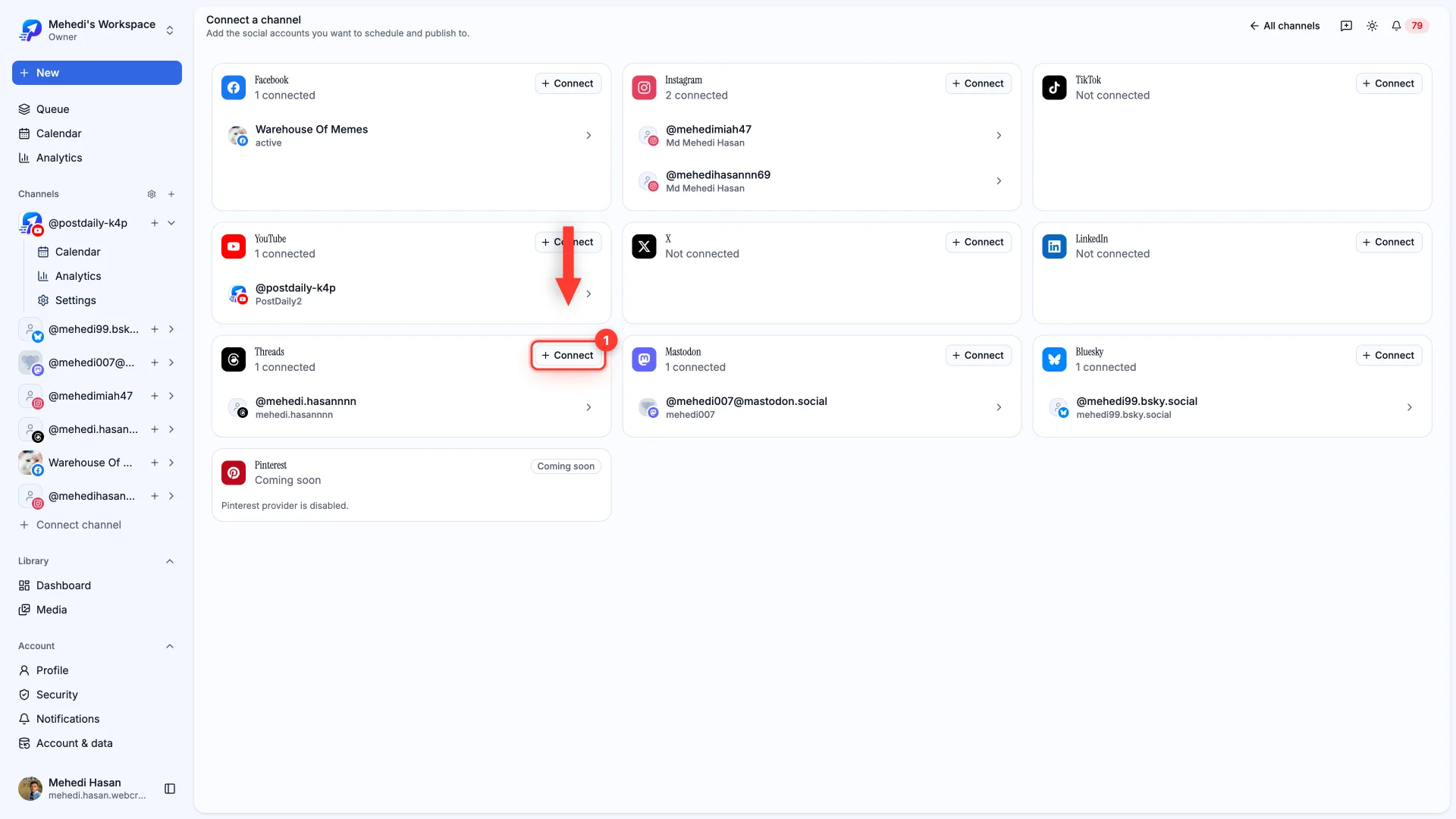
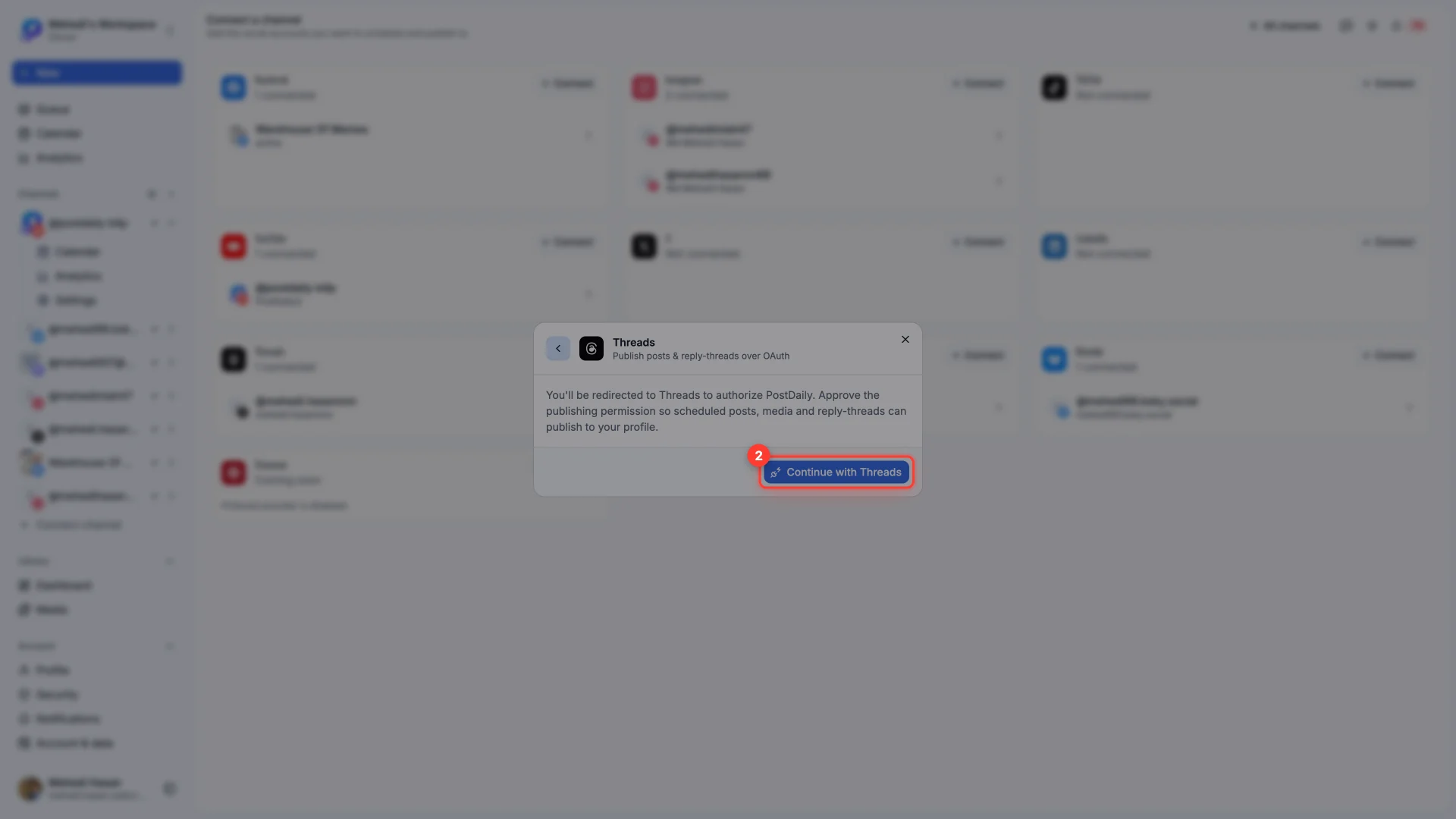
There's nothing to fill in. Threads takes you to its own authorization screen, you approve the publishing permission, and you land back here connected.
Writing the post
Threads allows 500 characters, and the counter in the composer counts down so you can see the ceiling coming. Need more room? Add to thread turns one post into a chain — each segment gets its own text and its own media, and they publish in order as self-replies.
Who can reply, and topic tags
Open Advanced options under the editor. Two Threads-specific settings live there.
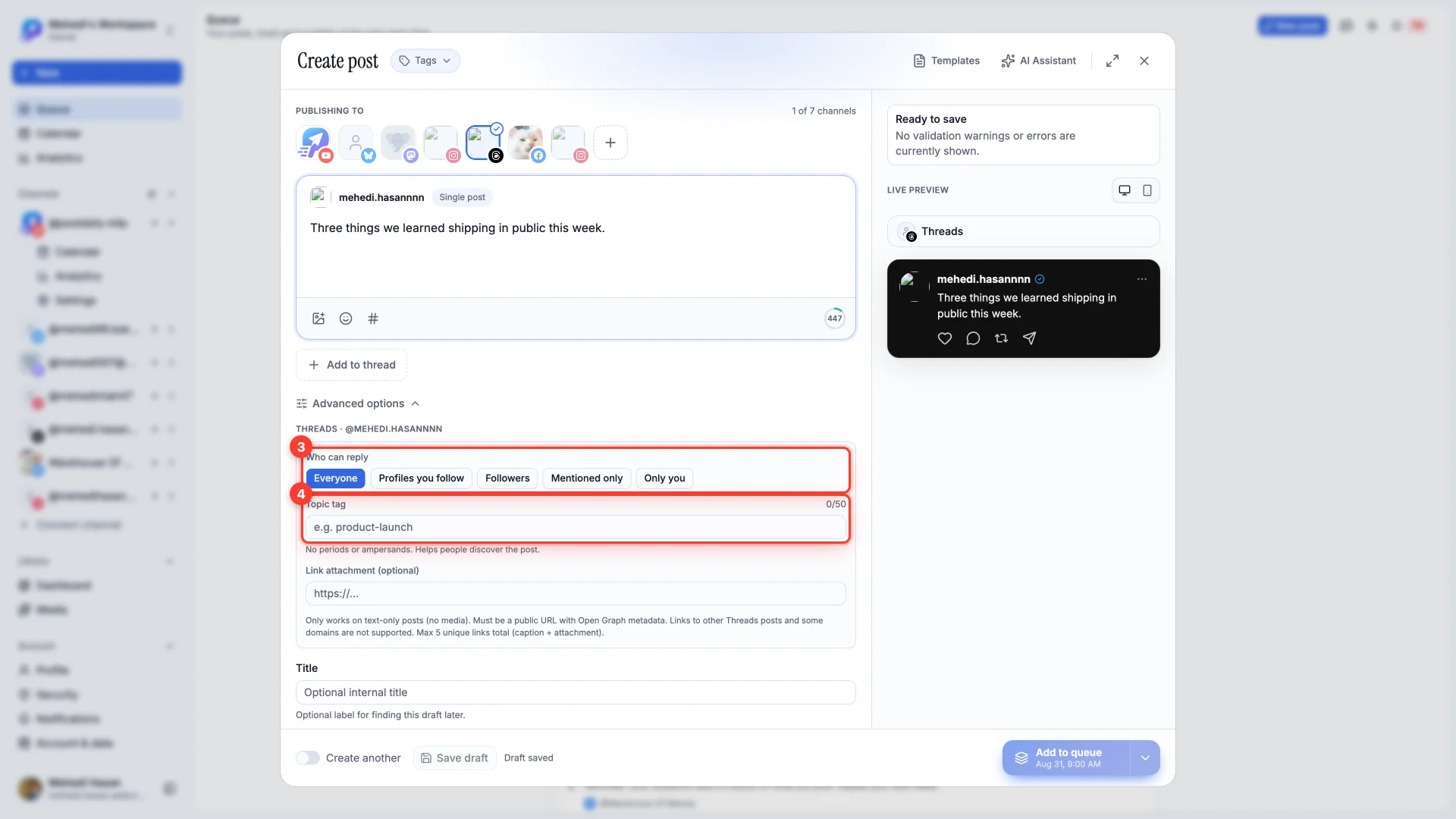
- 1Who can reply
Everyone, profiles you follow, your followers, mentioned accounts only, or nobody but you. Set it before publishing — it's part of the post.
- 2Topic tag
One tag, up to 50 characters, no periods or ampersands. It helps people find the post through the topic rather than through you.
Attaching a link
Link attachment gives a text post a proper link card. It's fussier than it looks, so the rules are worth knowing before you rely on it.
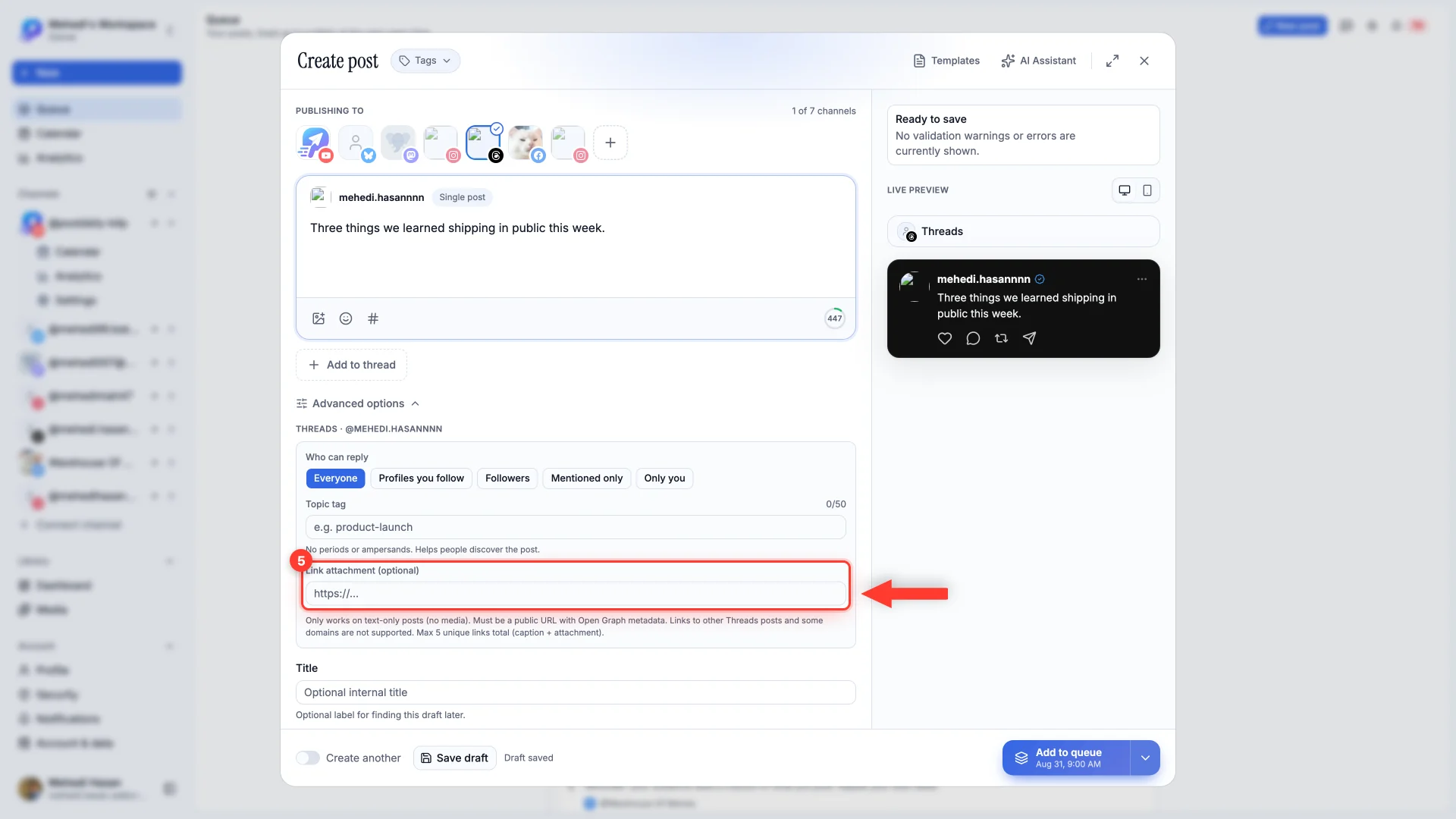
- Text-only posts. Attach a photo or video and the link attachment is ignored.
- Public URLs with Open Graph metadata. A page behind a login has nothing for Threads to read.
- Not every destination works — links to other Threads posts and some domains are rejected.
- Five unique links per post, counting any in the caption.