
Connect Mastodon from any server
Connect Mastodon from any server: pick your server first, then set visibility and content warnings, and write within that server's own limits.
Choosing your Mastodon server and authorizing there.
Mastodon isn't one website. It's thousands of independent servers that talk to each other, so the first thing we need is which server your account is on.
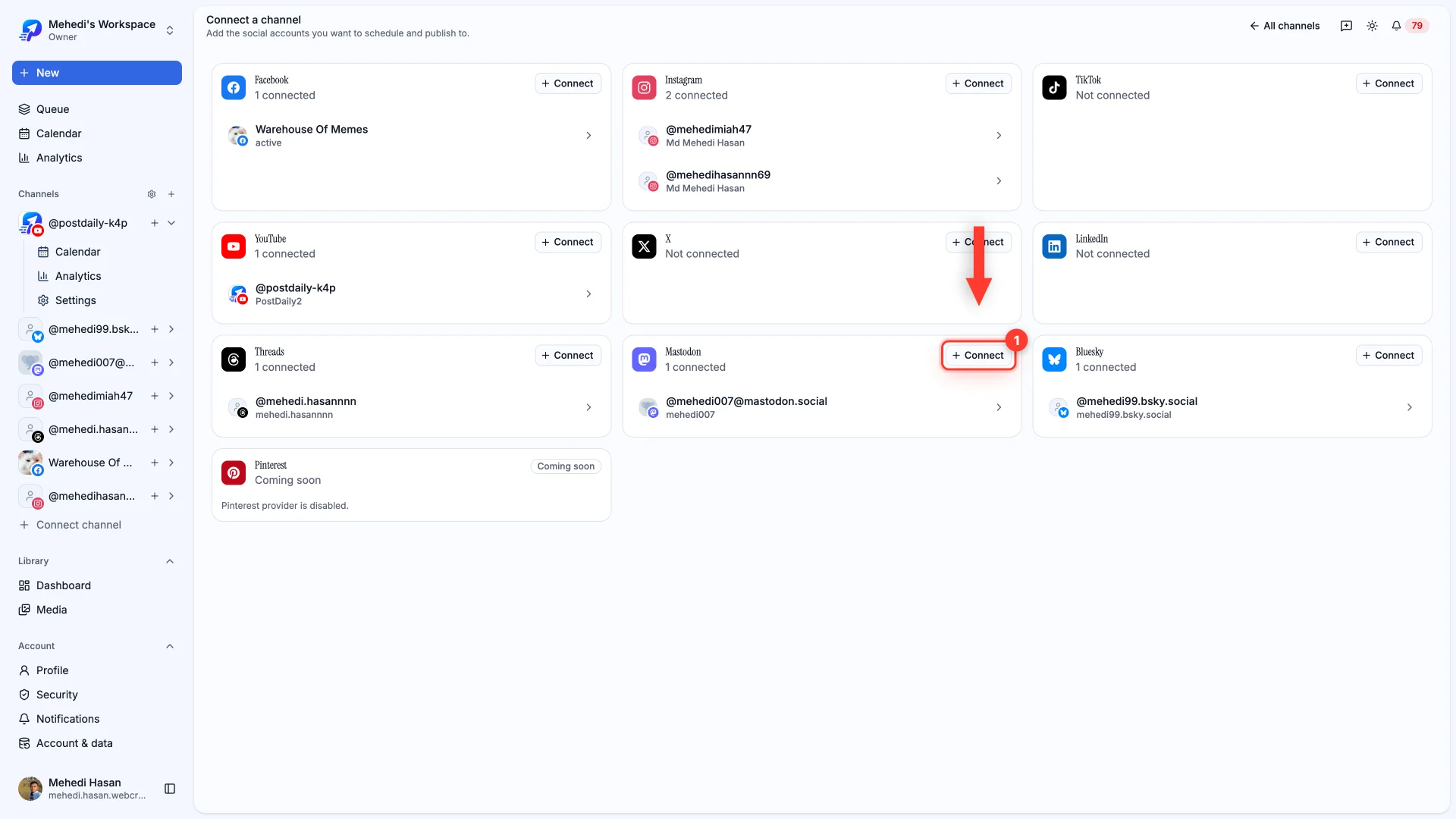
The dialog lists the busiest servers. If yours isn't there, choose Other server and type its address — any Mastodon server works.
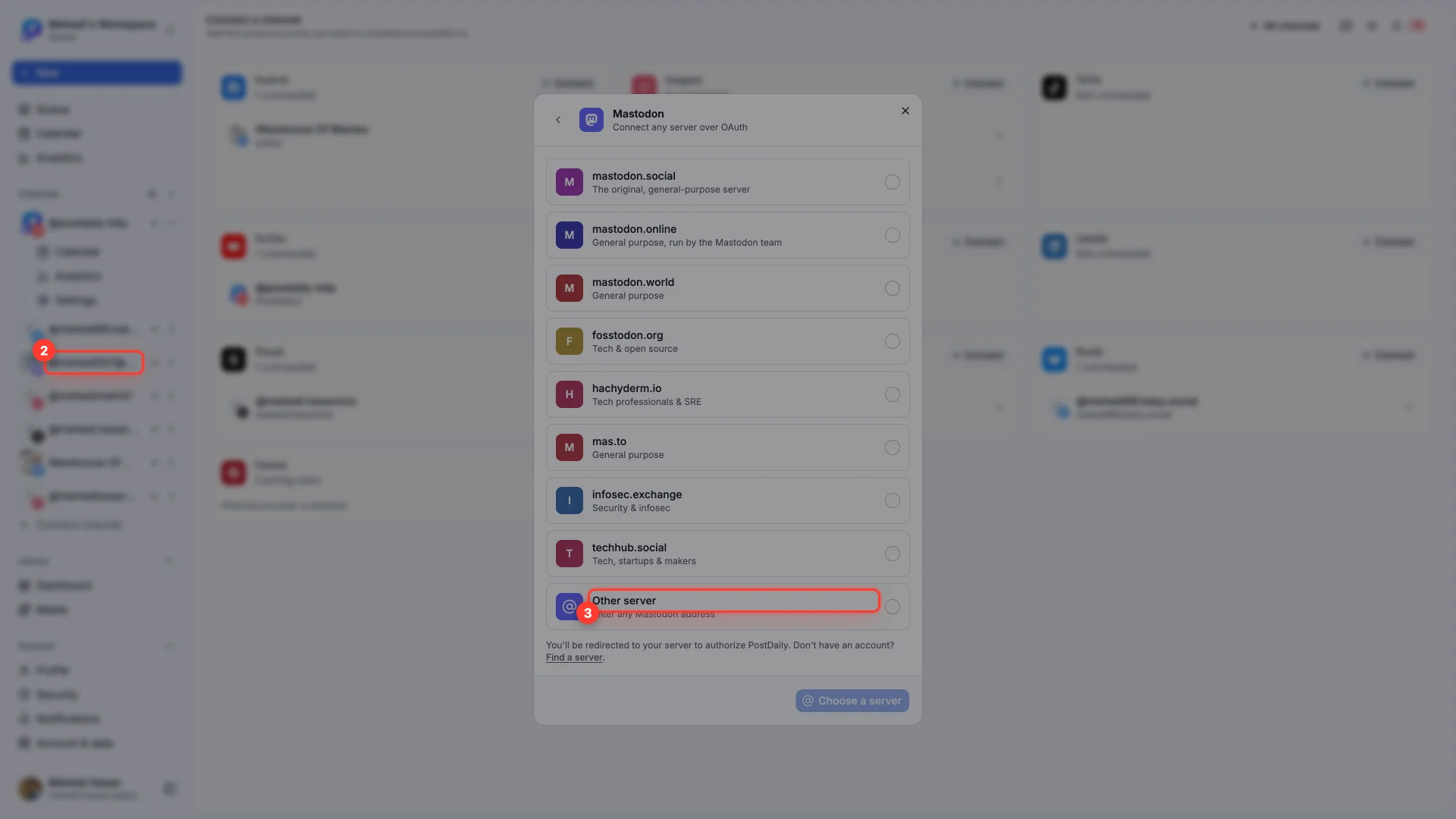
You'll be sent to your own server to authorize, since that's where your account lives. Approve there and you land back here connected.
Visibility, warnings and language
Mastodon's per-post controls live under Advanced options, and they're the ones the culture actually cares about.
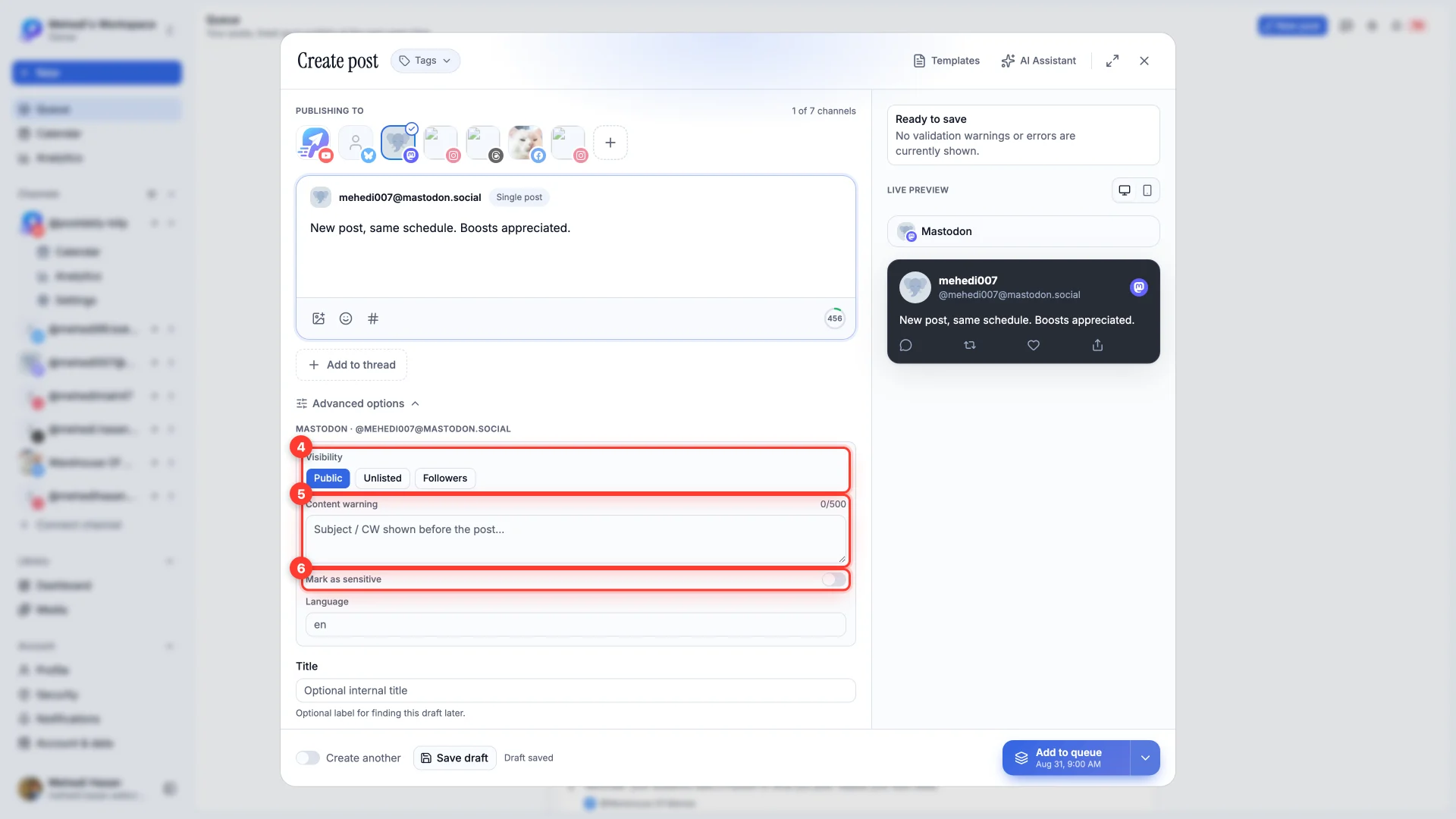
- 1Visibility
Public shows the post in public timelines. Unlisted is still visible to anyone with the link but stays out of those timelines — the usual choice for something you don't want amplified. Followers restricts it to your followers.
- 2Content warning
A short subject line shown in place of the post, which readers tap to expand. Mastodon uses these far more liberally than other networks — for spoilers, politics, food, anything a reader might want to opt into.
- 3Mark as sensitive
Blurs the attached media until it's tapped. Independent of the content warning, and worth using on anything startling.
- 4Language
A single code like
en. Servers use it for filtering, so setting it correctly gets the post to the right people.
Limits
The character limit is your server's own: PostDaily reads it when you connect and checks it again every day, so the composer's counter shows what your server allows. If a server doesn't publish its limit, the counter uses 500, Mastodon's default. Attachments are held to 4 per post, the default most servers keep.