
Add team members and set their roles
Invite teammates by email as an Admin, Editor or Viewer. Seats come with your plan rather than being billed per person, and each role's limits are spelled out.
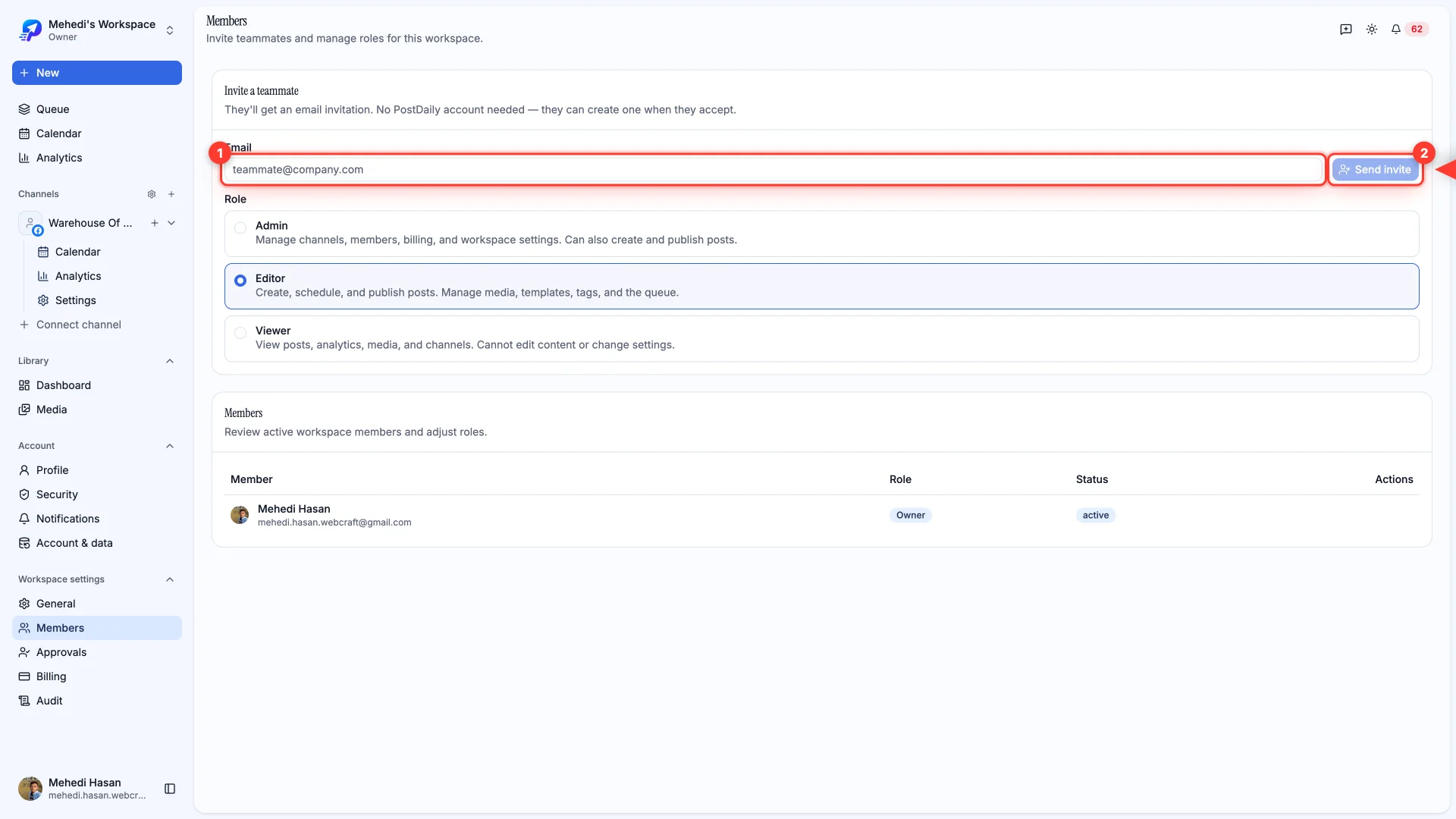
Adding a workspace member, and how seats come from your plan.
A workspace can be shared with as many teammates as your plan allows. Everyone works from the same channels, queue and media library.
Send an invite
- 1Open Workspace settings → Members
You'll find it at the bottom of the sidebar.
- 2Enter their email, pick a role and click Send invite
They don't need a PostDaily account yet — the invite works either way, and walks them through signing up.
Roles
- Admin — Manage channels, members, billing, and workspace settings. Can also create and publish posts.
- Editor — Create, schedule, and publish posts. Manage media, templates, tags, and the queue.
- Viewer — View posts, analytics, media, and channels. Cannot edit content or change settings.
The person who created the workspace is its Owner. An Admin can invite Editors and Viewers; only the Owner can make someone an Admin. Clients who only need to approve posts don't need a seat at all: send them a review link instead.
Seats
Each member takes a seat on your plan. If you're at the limit, the invite is refused and tells you so — upgrade, or remove a member you no longer work with.