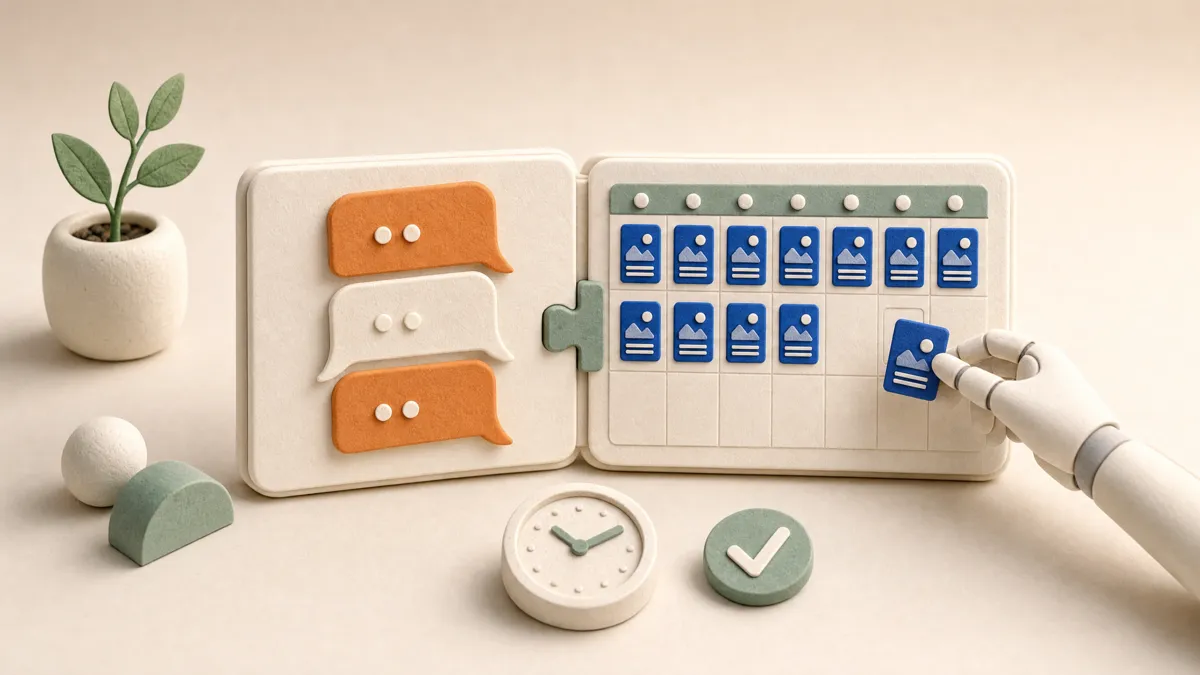
How to schedule social media posts with ChatGPT
ChatGPT can't post to Instagram or TikTok by itself. Connected to a scheduler over MCP, it can. The setup, what to ask it, and where it still falls short.
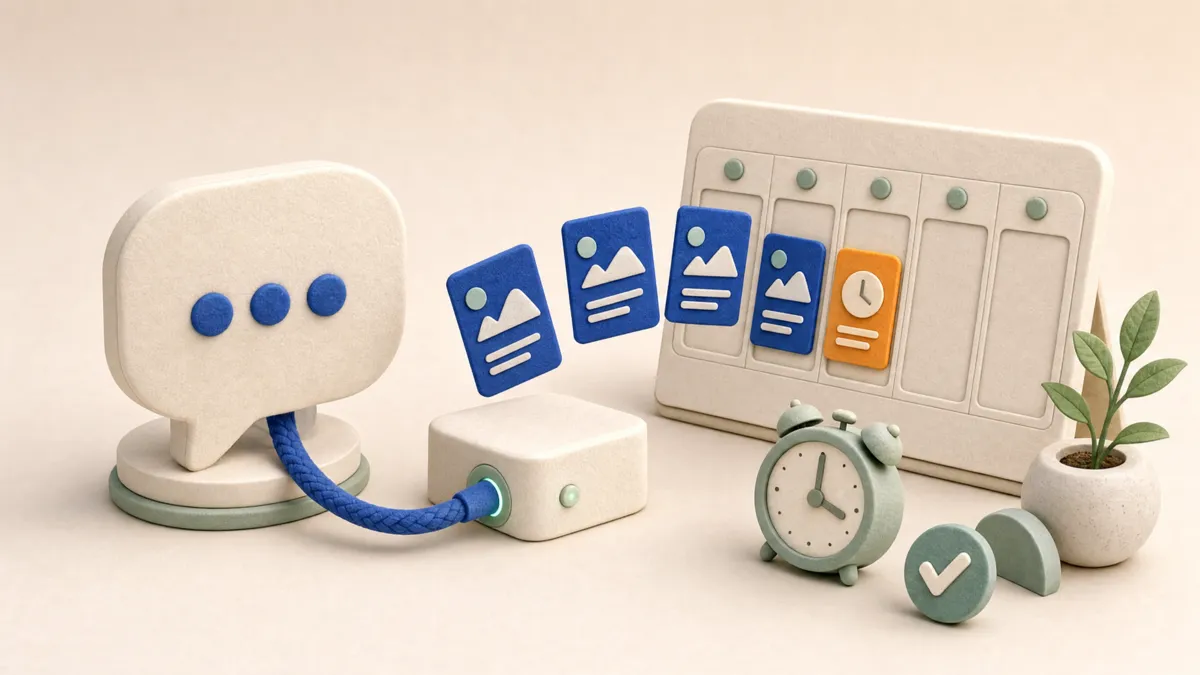
ChatGPT on its own can write a post, but it can't publish or schedule one. Instagram, TikTok, Facebook and the rest only accept posts from apps they have approved, signed in to your account. To schedule from ChatGPT, you connect it to a scheduling tool that offers an MCP server. ChatGPT then asks that tool to do the posting. The steps below use PostDaily, which is our product, but the same approach works with any scheduler that offers MCP.
Why ChatGPT can't post for you on its own
Every network guards publishing behind its own API. An app has to be reviewed and approved, and then each person signs in to give it access to their account. ChatGPT has no approved access to Instagram or TikTok, and it doesn't hold your passwords. So the usual workflow is copy and paste: ChatGPT drafts a caption, you paste it into the network or into a scheduler, and you fix whatever it got wrong about that network's limits.
That last part is where a lot of time goes. A caption that fits Instagram is too long for X, Bluesky counts characters differently from Mastodon, and since December 2025 Instagram caps a post at five hashtags. ChatGPT doesn't know any of that unless something tells it.
What MCP changes
MCP (Model Context Protocol) is the standard way AI apps connect to other software. A scheduler that runs an MCP server offers ChatGPT a set of actions, such as listing your channels, checking a post against each network's rules, scheduling it or reading your analytics. ChatGPT decides when to use them, based on what you ask.
Your social accounts stay connected to the scheduler, not to ChatGPT. ChatGPT never sees your Instagram password or the tokens the scheduler holds. It only gets the actions you allow, in the workspaces you choose.
Set it up
PostDaily isn't in ChatGPT's app directory yet, so you add it with developer mode. OpenAI decides who can use developer mode, and availability can depend on your plan and your workspace's settings. These steps were checked on 2 October 2026:
- In ChatGPT, open Settings → Security and login and turn on Developer mode.
- Open Plugins, select +, name it PostDaily and enter https://mcp.postdaily.app/mcp under Connection.
- When ChatGPT asks you to sign in, PostDaily opens. Choose Full access, Drafts only or Read only, tick the workspaces ChatGPT may use, and allow access.
- Start a new chat and add PostDaily from the tools menu.
The full walkthrough, with what to do if a menu has moved, is in Connect PostDaily to ChatGPT. You need a PostDaily account with at least one channel connected. The free plan is enough to try it, and the connection itself costs nothing extra on any plan.
What to ask it
Talk to it the way you'd brief a colleague. Name the networks, the timing and anything it should avoid. Some requests that work well:
- "List my PostDaily channels." A good first message: it confirms the connection and shows ChatGPT what it can post to.
- "Write a post about our Saturday market stall for Instagram and Facebook, and add it to my queue." It writes a version for each network, checks each one against that network's rules and puts it in the next free slot of each channel's posting schedule.
- "Plan five posts for next week about our new opening hours and fill my empty slots." It reads your queue first, so it fills gaps instead of stacking posts on top of each other.
- "Turn this blog post into a Threads chain and a Bluesky thread." Paste the text or a link. It splits the post into parts that fit each network's limit.
- "What did best last month, and when should I post?" It reads your analytics and your channels' own best times, not generic advice.
Give times with a time zone if you work across several. A time without one is read in your workspace's time zone, which is usually what you meant, but "9am" for a team split between London and New York needs saying.
It asks before anything goes out right away
Scheduling and publishing are different here. ChatGPT can put posts into your queue without asking each time, because a scheduled post waits there and you can still edit or cancel it in PostDaily. Publishing a post immediately, or retrying one that failed, needs your go-ahead in the chat first, even with full access. If a post has warnings, for example a video the network may reject, ChatGPT has to show them to you before it can go ahead.
If you'd rather check everything yourself, connect with Drafts only. ChatGPT can then write and save drafts and upload media, but nothing is scheduled until you do it in PostDaily. In a workspace that requires client approval, posts that ChatGPT schedules wait for the client, exactly like posts you write yourself.
Where it still falls short
- Files on your phone or computer. ChatGPT can't hand a file from your device to PostDaily. Ask it for an upload link: it opens your PostDaily media library, you upload there, and it attaches what you added. Images at a public web address it can add directly.
- What the networks don't allow. No outside tool can post to a personal Facebook profile, only to Pages. Connecting ChatGPT doesn't change what a network's API permits.
- Networks PostDaily doesn't publish to yet. LinkedIn is still in progress. ChatGPT only sees the channels you have connected, so it won't pretend otherwise.
- Your brief. It writes from what you give it. A specific request (the offer, the audience, the tone, what not to say) gets a far better post than "write something about our product".
Other AI apps work the same way
Nothing here is specific to ChatGPT. Any AI app that supports MCP can connect to the same server. Claude is the simplest to set up, because PostDaily is listed in its connector directory and works on every Claude plan: see how to schedule social media posts with Claude. Coding agents such as Cursor, Codex and Claude Code can go one step further and upload a screenshot or a demo video straight from your project. The AI agents page lists the apps and what each one can do.